Manhole + Pipe Snapping
Prerequisites:
Basic knowledge of how to use the Soarvo mobile application.
Basic knowledge of how to use the Soarvo web portal and setup feature types.
Knowledge of how to apply codes (previously called default codes in K-Capture) to attributes following the ‘App Codes for Attribute Settings Document’ below.
App Version:
0.0.98+
App Codes for Attribute Settings Document:
https://github.com/KorecGroup/soarvo-mobile-flutter-public-docs/blob/0.0.98/default-codes-doc.md
Manhole + pipe snapping refers to the functionality, previously available in K-Capture, for a linear feature (ie a pipe) to snap its start and end nodes to point features (ie manholes), and pull attribute values from the snapped point features into the linear feature for calculations – and more. When you also change the geometry or update one of the snapped point features, it should recalculate the attributes of the snapped linear feature and update its geometry to the new snapped point feature position.
The feature types for both the linear and point features requires a specific setup to activate this.
Point Feature Type Setup
If you want to activate the functionality which recalculates the snapped linear features geometry and attributes when you create / edit a given feature of this feature type then you need to add an attribute to the point feature type with a name of _recalc_snaps like in the below screenshot. You can hide this attribute from the feature type form via the attribute setting value of !MODIFIER-HIDE.

Linear Feature Type Setup
You can use the !SNAPPEDSTART(AttributeNameHere) and !SNAPPEDEND(AttributeNameHere) to pull out attribute values from the point features which are snapped to the respective start and end of the linear feature. Where ‘AttributeNameHere’ is the name of the attribute from the point feature. For example, if you wanted to pull out the value of the ‘COVER_LEV’ attribute from the manhole point features you would create attributes in the linear pipe feature type as below.
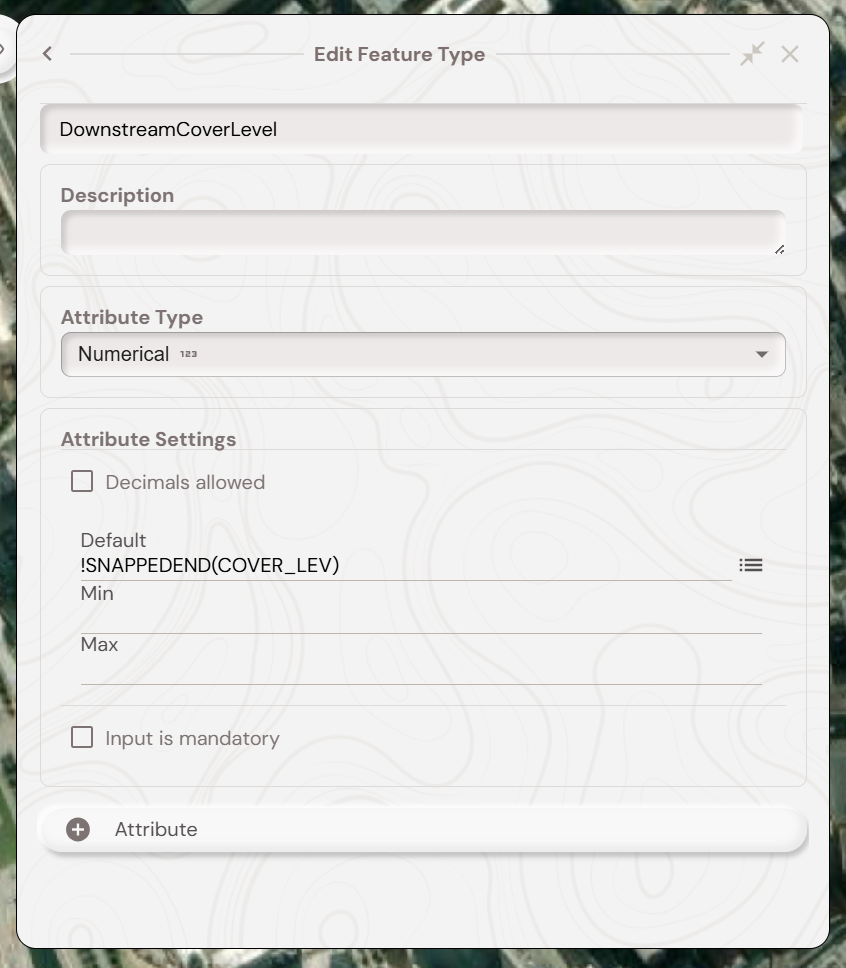
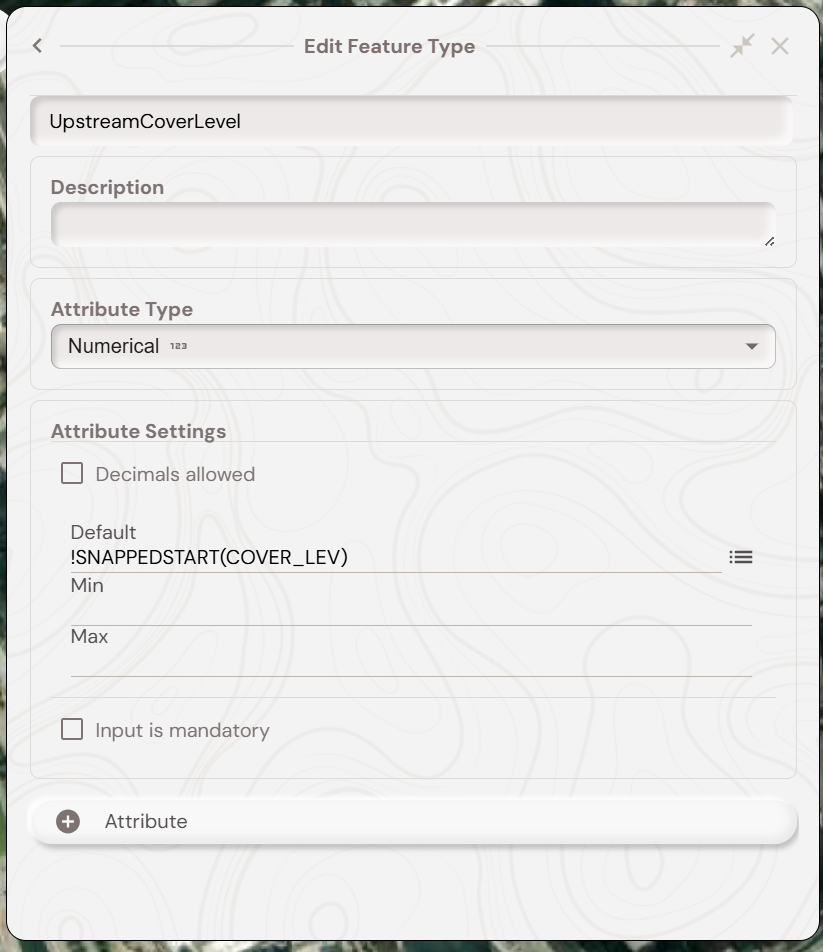
You can then calculate the difference between these values using the !CALC syntax for the attribute settings in an other attribute in the pipe feature type like below. The attribute names ‘DownstreamCoverLevel’ and ‘UpstreamCoverLevel’ are prefixed with a $ character to make them reactive, meaning whenever the ‘DownstreamCoverLevel’ or ‘UpstreamCoverLevel’ attributes are changed then this calculation is reran.

Example Video
With the feature types setup you should be able to follow the video below, in this two point features already exist with a ‘COVER_LEV’ attribute value. The video demonstrates creating a linear feature between them and then changing the position and COVER_LEV of one of the snapped point features.