Prerequisites:
Basic knowledge of how to use the Soarvo mobile application.
Basic knowledge of how to use the Soarvo web portal.
Knowledge of how to apply codes (previously called default codes in K-Capture) to attributes.
App Version:
0.0.134+
There are three elements of alignment and chainage that are implemented in the Soarvo mobile application:
- UI widget at the bottom of the map that displays the chainage and offset from your current position to the linear feature selected as the ‘alignment’. This is referred to as the ‘maps chainage and offset display’ below
- Styling of the linear feature marked as the ‘alignment’ – it will have chainage markers along the length of the feature
- Chainage and offset based calculations that are activated by specific codes in the default value field of an attribute
For all three elements you must first select a linear feature, tap the three dots context menu on its sheet, and select ‘Use as Alignment’, like in the video below. You can also see how selecting a linear feature as the alignment enabled the the first two elements mentioned above.
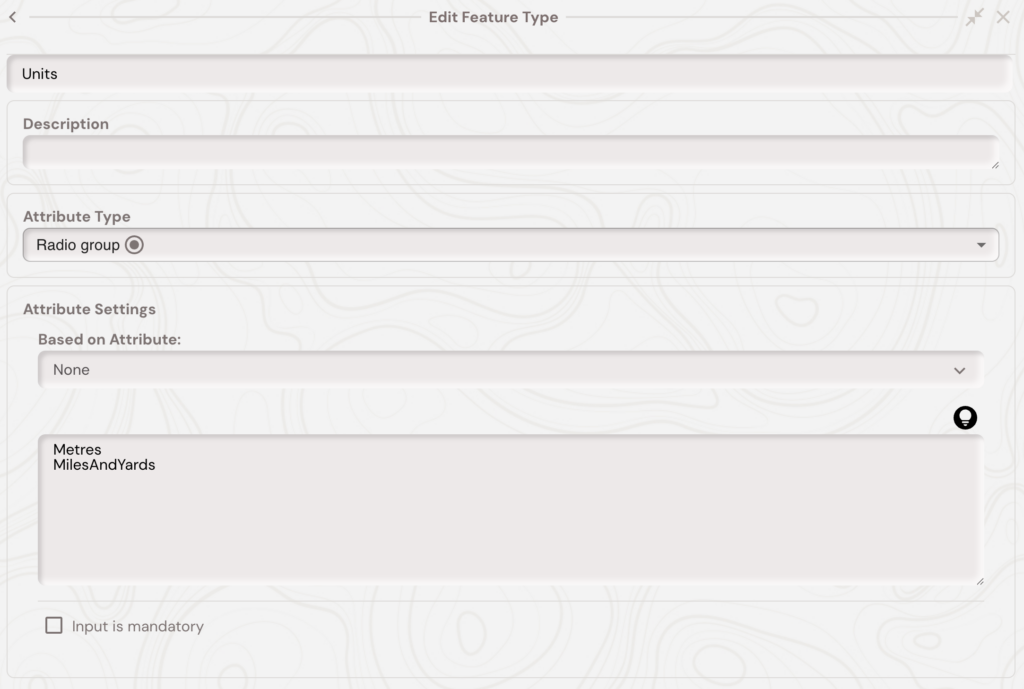
If you want the units of the maps chainage and offset display, chainage markers, and chainage and offset based calculations to be in the ‘miles and yards’ format, e.g 1M 13Y, then you need to add a ‘Units’ attribute to the feature type of the linear feature selected as the alignment. Then set the value of this attribute to ‘MilesAndYards’. You can see in the image below this is setup as a radio group attribute. Metres is the default unit for all chainage and offset displays and calculations.
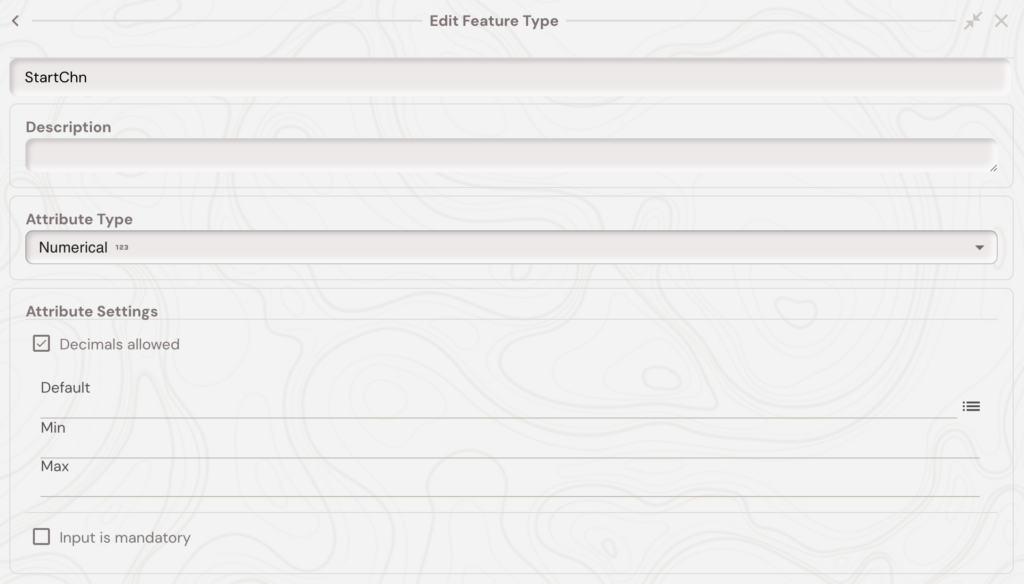
If the linear feature selected as alignment does not start at a chainage value of 0, then you can also specify this by creating a ‘StartChn’ numeric attribute to the feature type of the linear feature selected as the alignment. All chainage and offset calculations, including the UI displays, will then take this into account.
If you want to stop using the linear feature as the alignment then tap the feature, tap the three dots context menu button, then tap ‘Remove as Alignment’.
Chainage and Offset Calculations
The various default value codes to calculate chainages and offsets are summarized below.
The below default values are executed whenever the geometry of the feature is updated.
| !CHN | Chainage along the map alignment for the feature geometry. Only available for point geometries. |
| !CHNOFFSET | Offset from the map alignment for the feature geometry. Only available for point geometries. |
| !CHNMIN | Minimum chainage along the map alignment for the feature geometry. Available for point and linear geometries. |
| !CHNMAX | Maximum chainage along the map alignment for the feature geometry. Available for point and linear geometries. |
The below default values are executed whenever the feature is opened (so created/edited).
| !CHNATTRIBUTE(AlignmentAttributeNameHere) | Gets the value of an attribute from the alignment feature, the parameter is the name of the attribute to get (e.g. !CHNATTRIBUTE(Units)). |