
Prerequisites:
Basic knowledge of how to use the Soarvo mobile application.
Basic knowledge of how to use the Soarvo web portal and setup feature types.
App Version:
0.0.121+
Secondary features are automatically created and linked to a parent feature. They are recreated when the parent is edited and are deleted if the parent is also deleted.
You can create a secondary ‘GridLines’ linear feature which is a secondary feature with x amount of columns and rows, variable spacing, and different baselines. Optionally, you can also create ‘GridLineIntersections’ secondary point features, at the intersection of the GridLines secondary feature geometry – and ‘GridLineCentres’ secondary point features at the centre of the squares of the GridLines linear feature, which is used for annotating the squares.
‘GridLineCentres’ and ‘GridLineIntersections’ are optional, if you do not create these feature types then they won’t be generated – but the ‘GridLines’ secondary feature will and must be created.
Grid Generation – Parent Secondary Feature Type Setup
You must setup a parent feature type for all of the GridLines based secondary features. The parent should have a linear geometry type. This parent linear feature type must have the following setup on it:
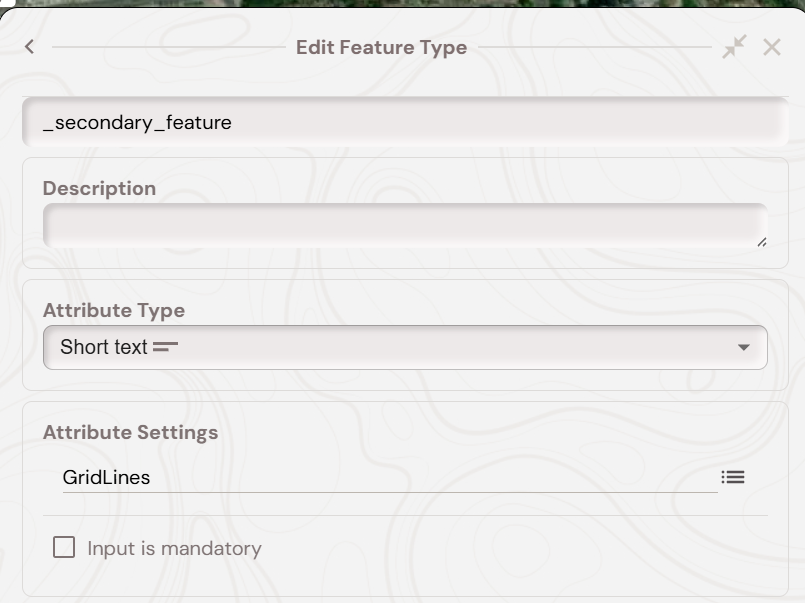
A short text attribute of name ‘_secondary_feature’ with a default value of ‘GridLines’ like below:
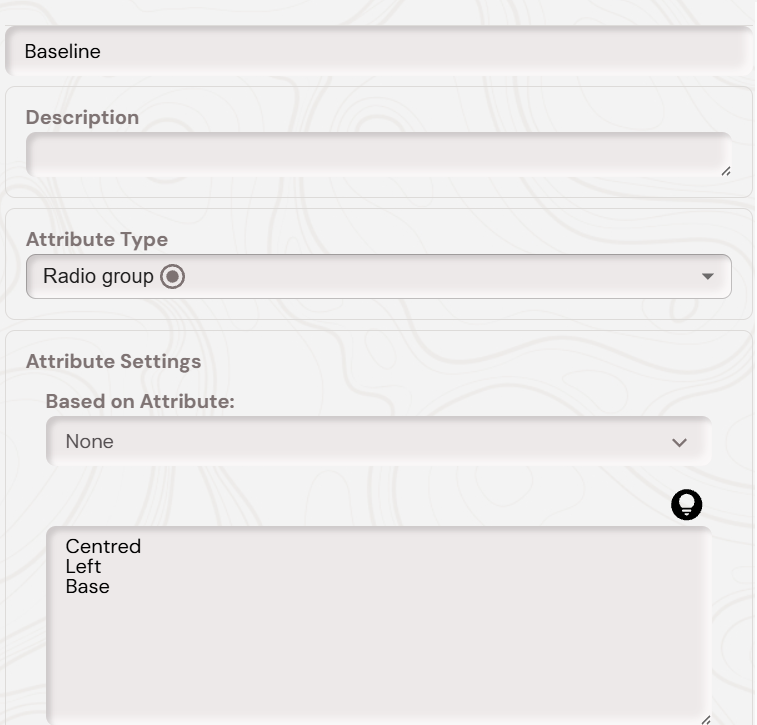
A numerical attribute named ‘Rows’, a numerical attribute named ‘Cols’, and a numerical attribute named ‘Spacing’. It also needs a radio group attribute with the options ‘Centred’, ‘Left’, ‘Base’ for the baseline, as shown below:
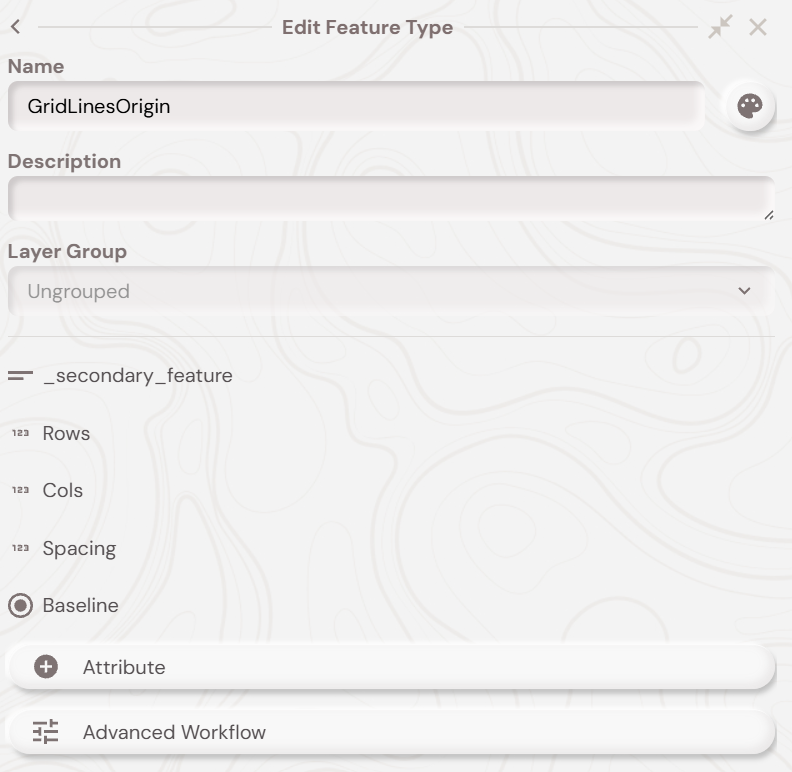
At the end, your parent secondary feature, which when a feature of this type is created will create all of the GridLines based features, should look like below:
Grid Generation – ‘GridLines’ Feature Type Setup
You must setup a linear feature type of the name ‘GridLines’ in a given project. That should be all the setup that is required, you can optionally style this feature type how you wish.
Grid Generation – ‘GridLinesIntersections’ Feature Type Setup (OPTIONAL)
You must setup a point feature type of the name ‘GridLineIntersections’ in a given project. That should be all the setup that is required, you can optionally style this feature type how you wish.
Grid Generation ‘GridLinesCentres’ Feature Type Setup (OPTIONAL)
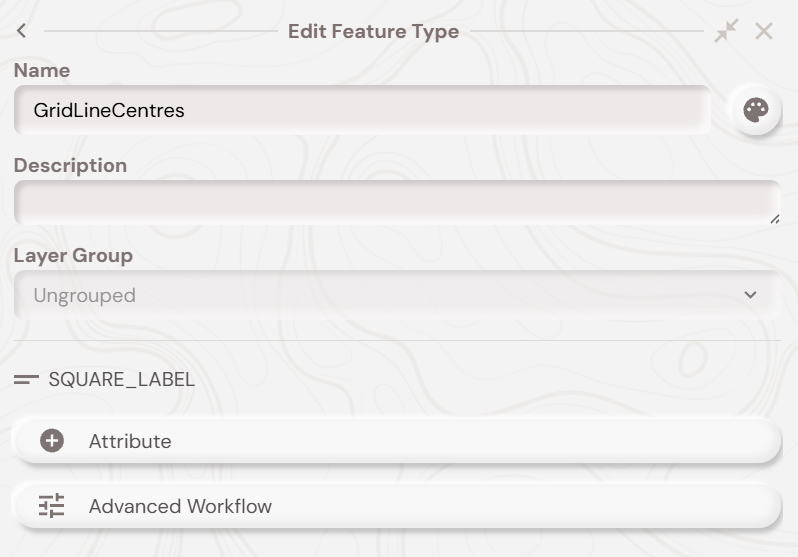
You must setup a point feature type of the name ‘GridLinesCentres’ in a given project. You then must create a short text attribute of the name ‘SQUARE_LABEL’, so your feature type should look like below:
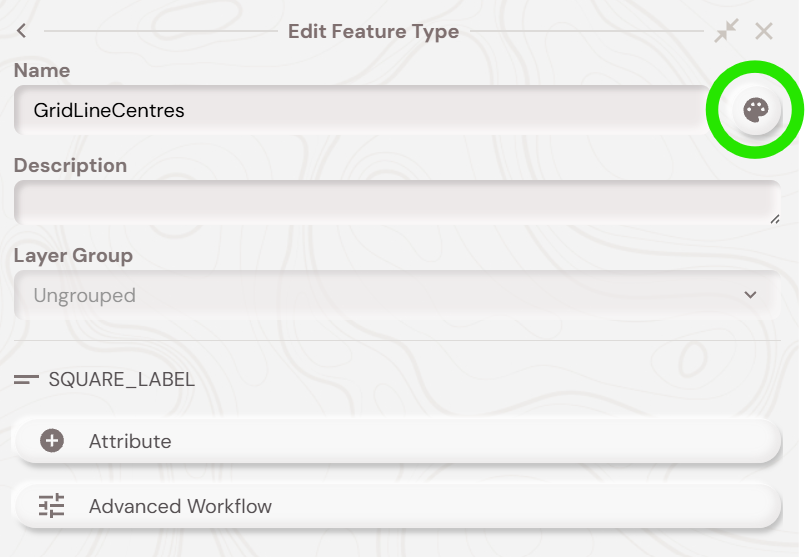
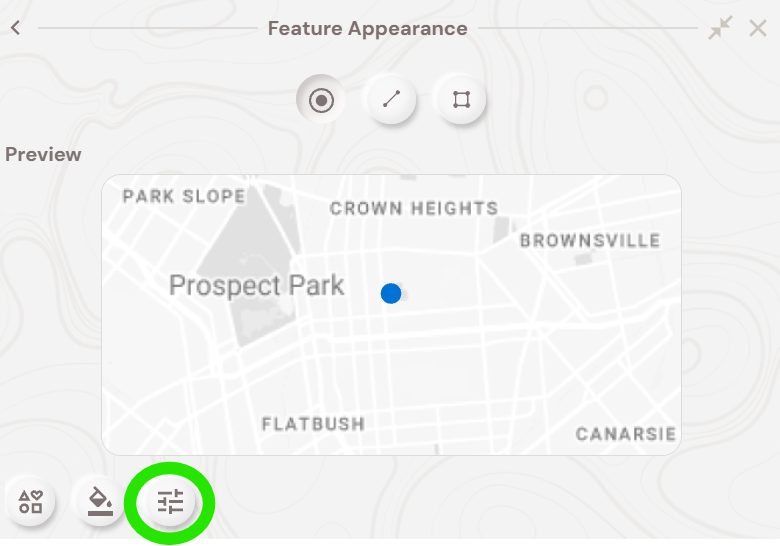
If you want labels to appear (e.g ‘A1, A2, A3’ etc) you need to enable annotation for the ‘GridLineCentres’ feature type. You can do this by clicking the top right ‘feature type style’ button and then the bottom left ‘feature type annotation’ button to bring up the feature type annotation setup. As shown below:
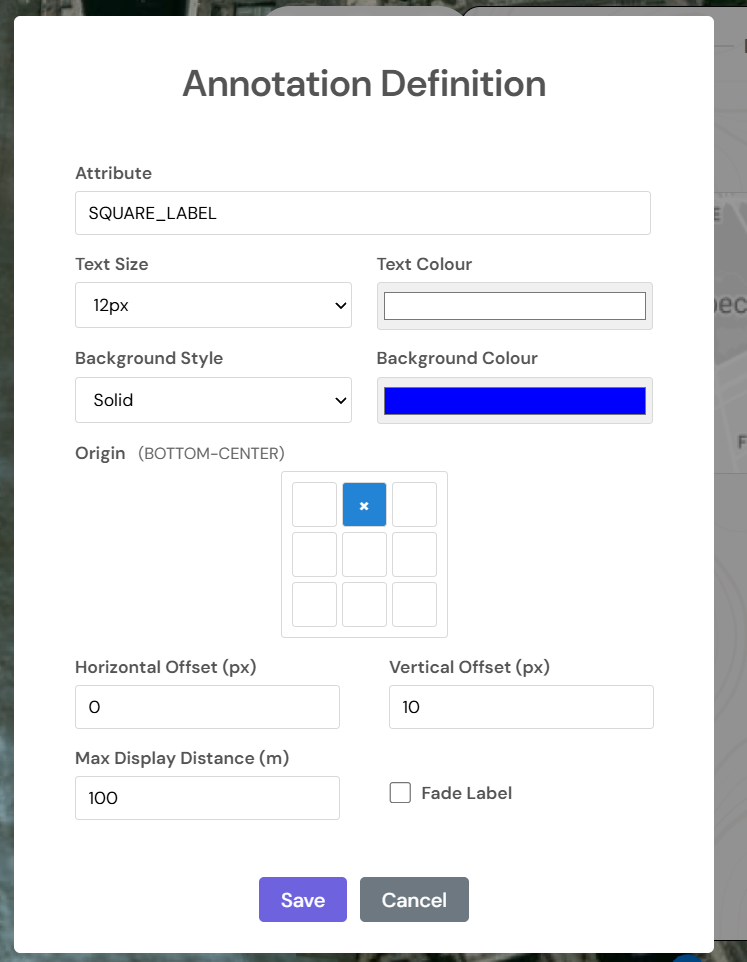
Then, ensure the ‘Attribute’ textbox is filled with ‘SQUARE_LABEL’. The other options you can choose whatever you wish. A good starting point is shown below:
If you want to make the point icons themselves smaller, you can do this clicking the ‘feature type icon ‘ button – which is highlighted below:
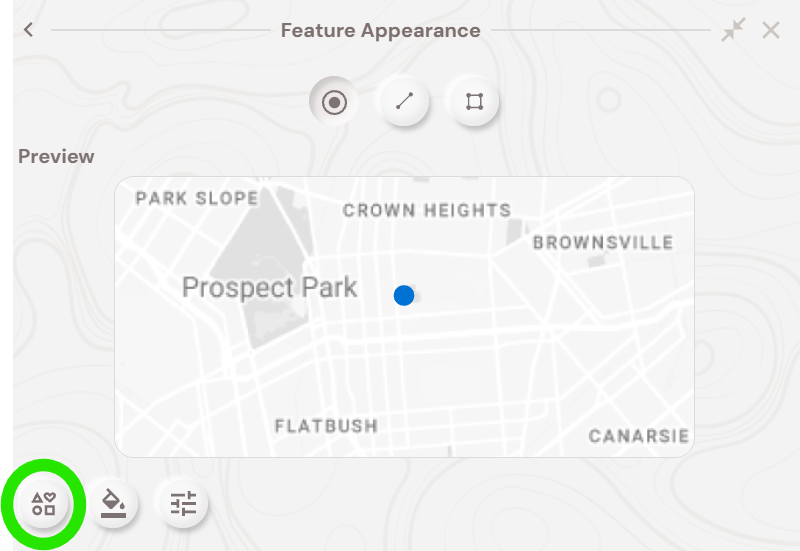
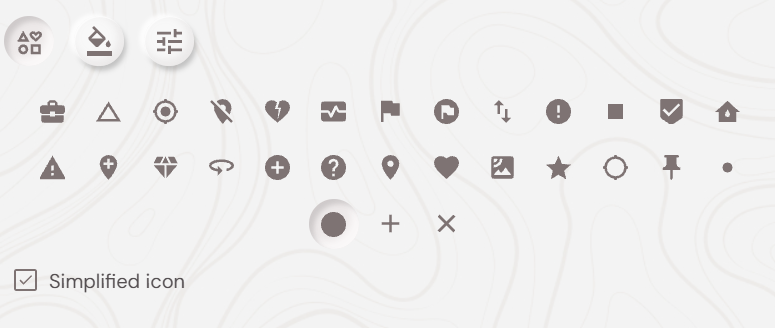
Ensure that ‘Simplified icon’ is ticked, and then choose the largest or smallest circle styling option, like below:
Grid Generation – Mobile Demo
With all of the above setup done you should now be able to follow along with the video below, which shows the grid generation secondary feature workflow on the Soarvo Mobile app. In the video, the ‘GridLinesOrigin’ is the parent feature type which all of the grid based secondary features and linked to a feature of that type. So when you delete the ‘GridLinesOrigin’ feature then the grid based secondary features are deleted also.