Prerequisites:
Basic knowledge of how to use the Soarvo mobile application.
Basic knowledge of how to use the Soarvo web portal and setup feature types.
App Version:
0.0.126+
Secondary features are automatically created and linked to a parent feature. They are recreated when the parent is edited and are deleted if the parent is also deleted.
You can create n number of parallel line linear secondary features at an x offset from a parent linear feature. This is useful for automatically recording a set of cables that run parallel to each other.
Parallel Lines Generation – Parent Secondary Feature Type Setup
You must setup a parent feature type for all of the parallel line based secondary features. The parent should have a linear geometry type. This parent linear feature type must have the following setup on it:
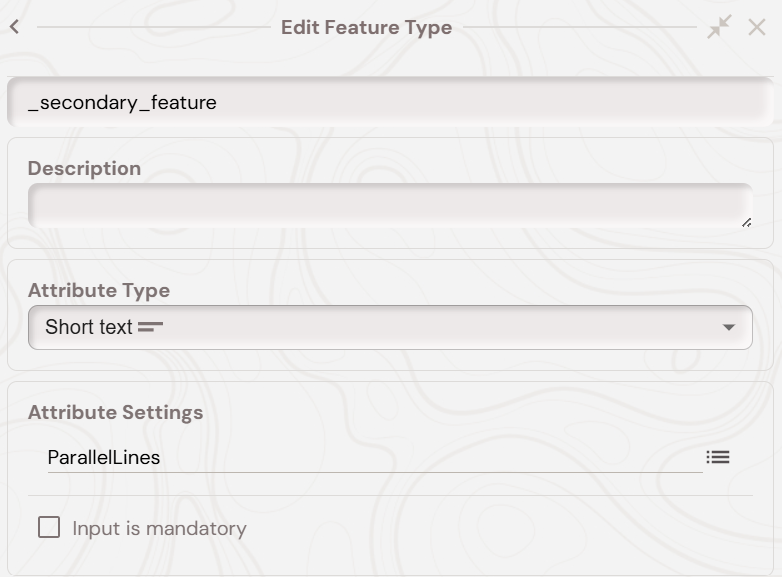
A short text attribute of name ‘_secondary_feature’ with a default value of ‘ParallelLines’ like below:
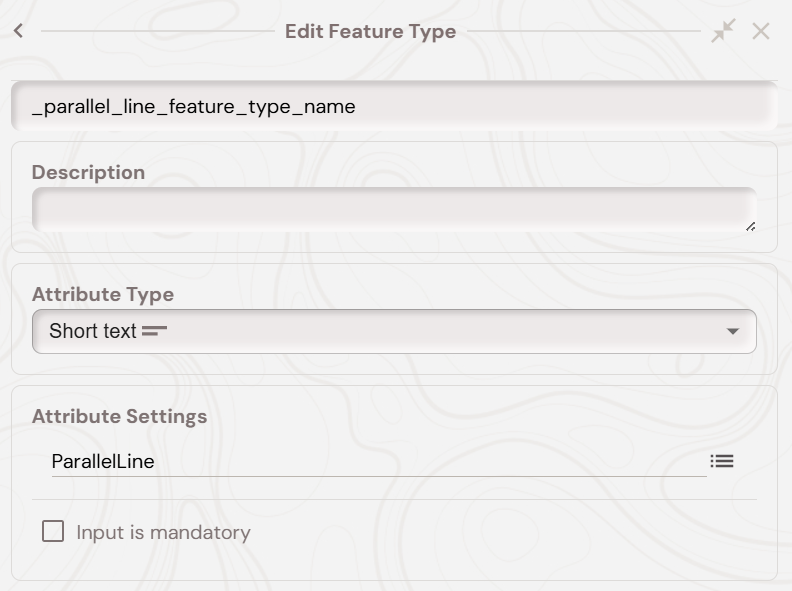
A short text attribute of name ‘_parallel_line_feature_type_name’ with a default value that is the name of the feature type of the parallel lines you want to create. In the below screenshot the feature type of the parallel lines is ‘ParallelLine’:
A numerical attribute of name ‘ParallelLineSpacing’ and a numerical attribute of name ‘NumOfParallelLines’.
A radio attribute of name ‘CapturedLineSide’ with values ‘Left’, ‘Right, and ‘Middle’. Like below:
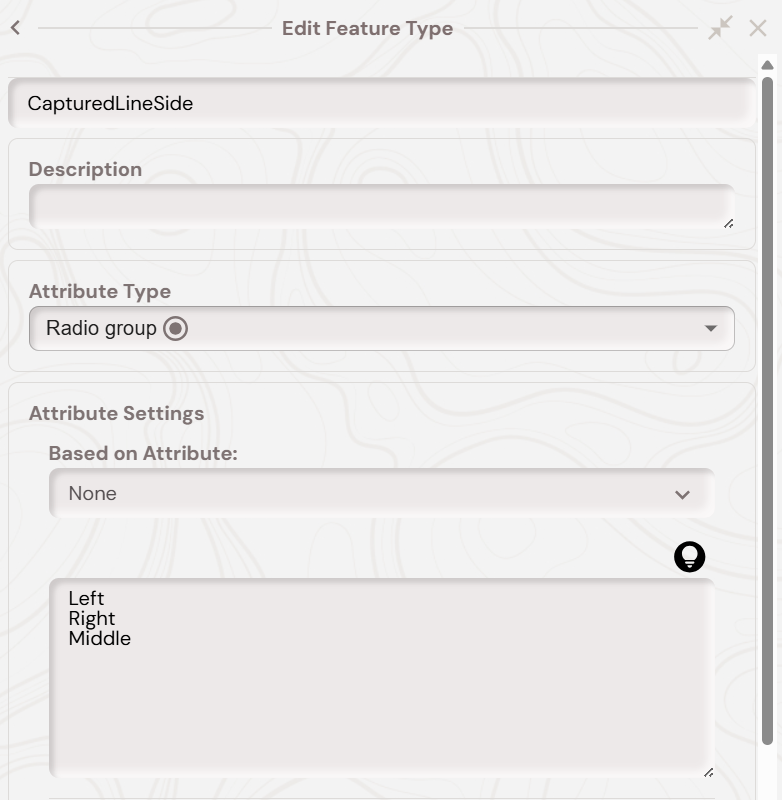
For the ‘CapturedLineSide’ the values are summarised below.
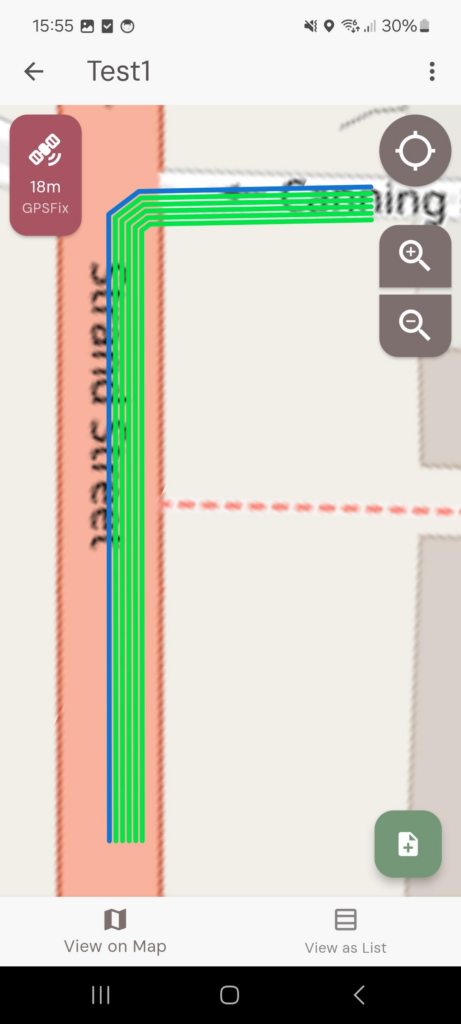
‘Left’ means the parent feature is the left most linear geometry, so all child parallel lines generated are on the right of the parents geometry. As shown in the below screenshot:
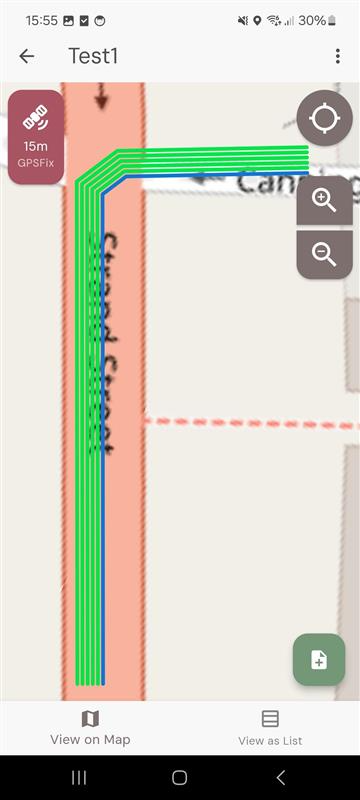
‘Right’ means the parent feature is the right most linear geometry, so all child parallel lines are on the left of the parents geometry. As shown in the below screenshot:
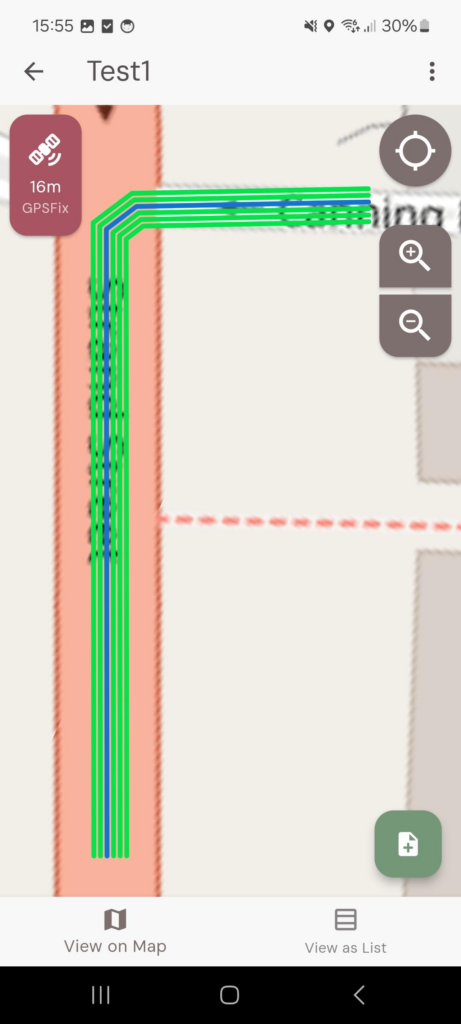
Middle means the parent feature is the middle geometry, and will alternate the behaviour from ‘Left’ to ‘Right’ to ‘Left’ to ‘Right’ etc. As shown in the below screen:
At the end, your parent secondary feature, which when a feature of this type is created will create the parallel line features, should look like below:
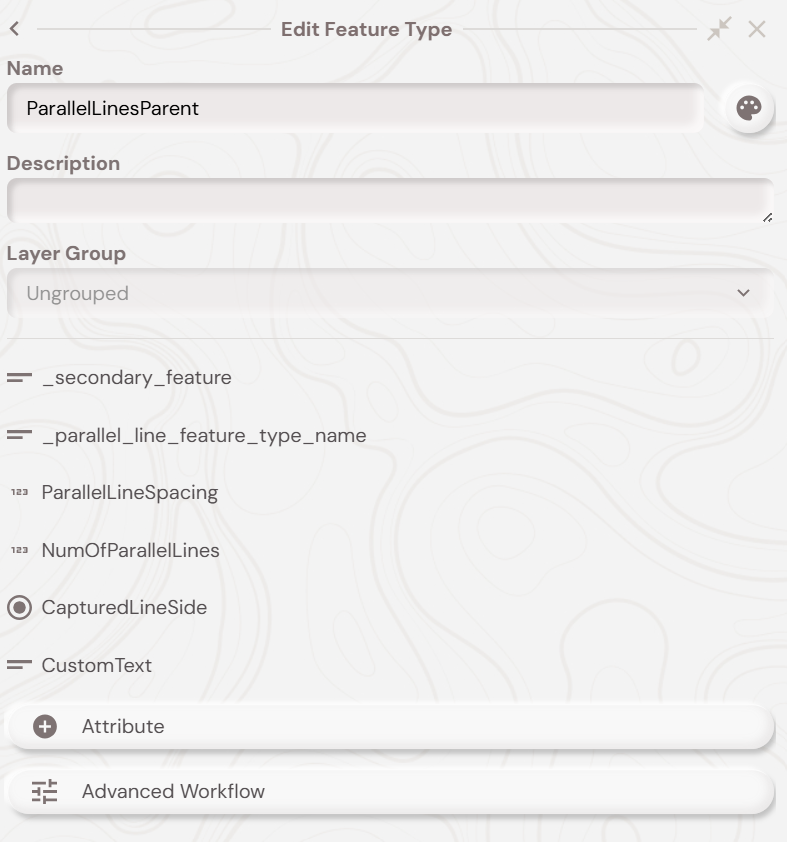
The ‘CustomText’ attribute is not required for the feature type setup – it is used later on in this documentation to show how you can copy over attribute values from the parent to its child parallel lines.
Parallel Lines Generation – Child Parallel Lines Feature Type Setup
The feature type name of the child parallel line feature type needs to be the same value as specified in the parents ‘_parallel_line_feature_type_name’ attribute and must be linear geometry.
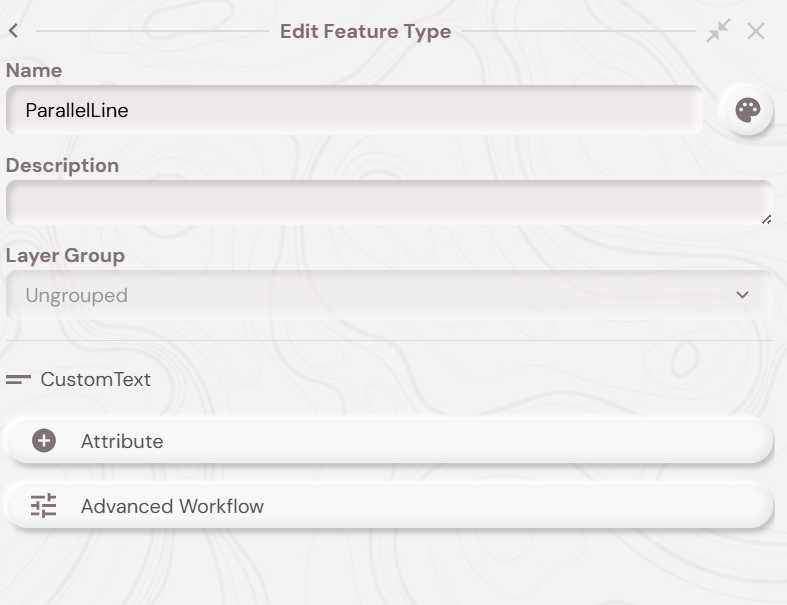
You can automatically have the parallel line features copy over values from its parent. If an attribute in the parallel lines child feature type has the same name as an attribute in the parent, then the value is copied to the child. So for example, if you wanted to copy the ‘CustomText’ short text value from the parent to the child parallel line features then you would create a short text attribute with the name ‘CustomText’ in the child feature type, like below:
Parallel Lines – Mobile Demo
With all of the above setup done you should now be able to follow along with the video below, which shows the parallel line secondary feature workflow on the Soarvo Mobile app. In the video, the ‘ParallelLinesParent’ is the parent feature type which has secondary features with parallel linear geometry. So when you delete the ‘ParallelLinesParent’ feature then the ‘ParallelLine’ secondary features are deleted also.