

Prerequisites:
Basic knowledge of how to use the Soarvo mobile application.
Basic knowledge of how to use the Soarvo web portal and setup feature types.
App Version:
0.0.130+
Secondary features are automatically created and linked to a parent feature. They are recreated when the parent is edited and are deleted if the parent is also deleted.
You can create tree root protection zones and crown spreads as secondary features from a parent tree point, or hedge edge extents and centrelines from a parent hedge line. This is useful for automatically recording arboricultural survey data including the Root Protection Radius (RPR) (or alternatively known as Root Protection Area (RPA)) calculated from stem diameters, crown spreads (even or uneven), and hedge extents with configurable widths and surveyed sides.
Tree Inspection – Parent Secondary Feature Type Setup
You must setup a parent feature type for all tree inspection based secondary features. The parent should have a point geometry type for individual trees. This parent point feature type must have the following setup:
Required Attributes
- Secondary Feature Identifier
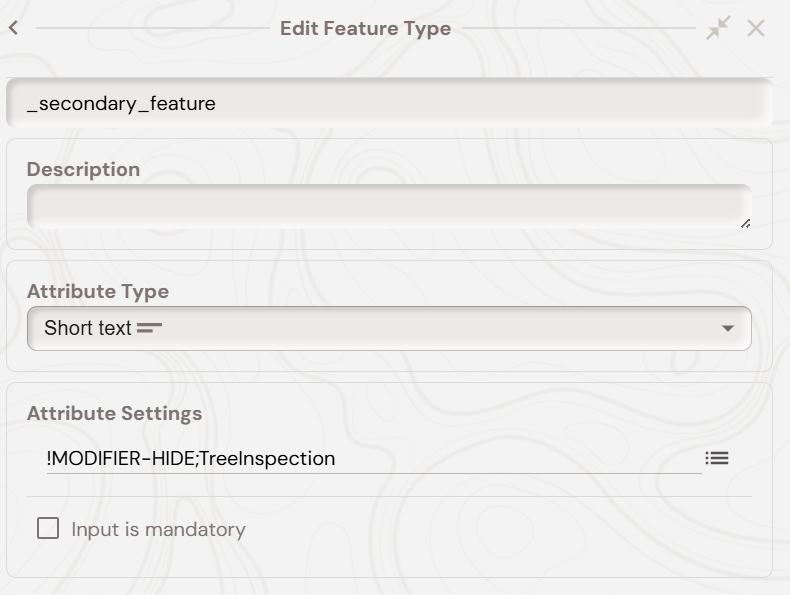
A short text attribute of name _secondary_feature with a default value of TreeInspection. Note, in the screenshots the default values are prefixed with !MODIFIER-HIDE;. This tells the app to hide this attribute from the UI and the semi-colon is a separator to chain ‘default values’ together:
- Root Feature Type Name
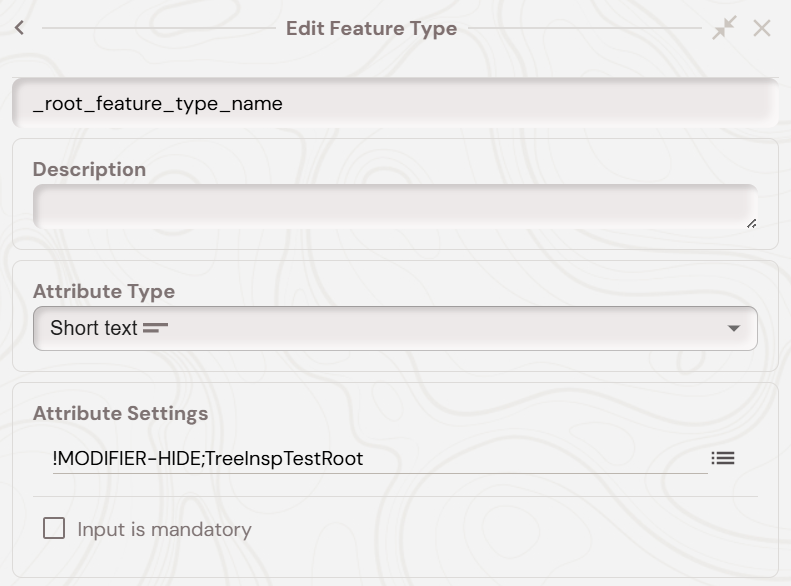
A short text attribute of name _root_feature_type_name with a modifier default code of !MODIFIER-HIDE;TreeInspTestRoot (replace TreeInspTestRoot with your actual root feature type name):
- Crown Feature Type Name
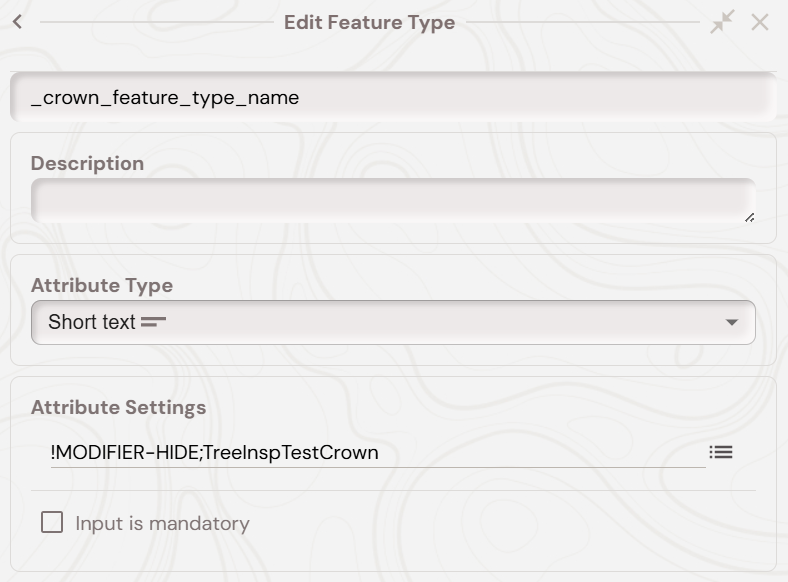
A short text attribute of name _crown_feature_type_name with a modifier default code of !MODIFIER-HIDE;TreeInspTestCrown (replace TreeInspTestCrown with your actual crown feature type name):
- Stem Count
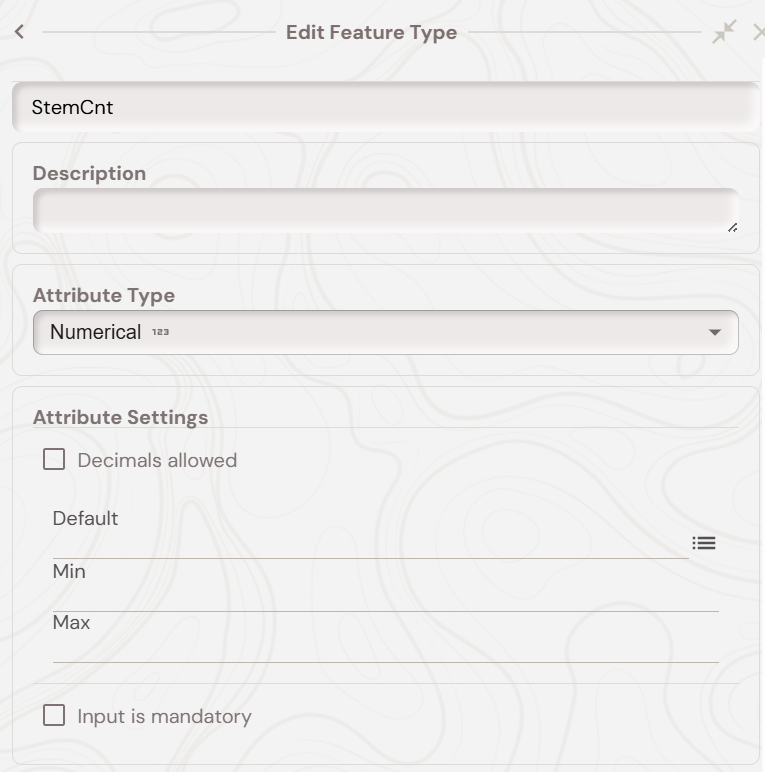
A numerical attribute named StemCnt (no decimals allowed) to record the number of tree stems:
- Stem Diameters
Numerical attributes (with decimals allowed) for each stem diameter in millimeters:
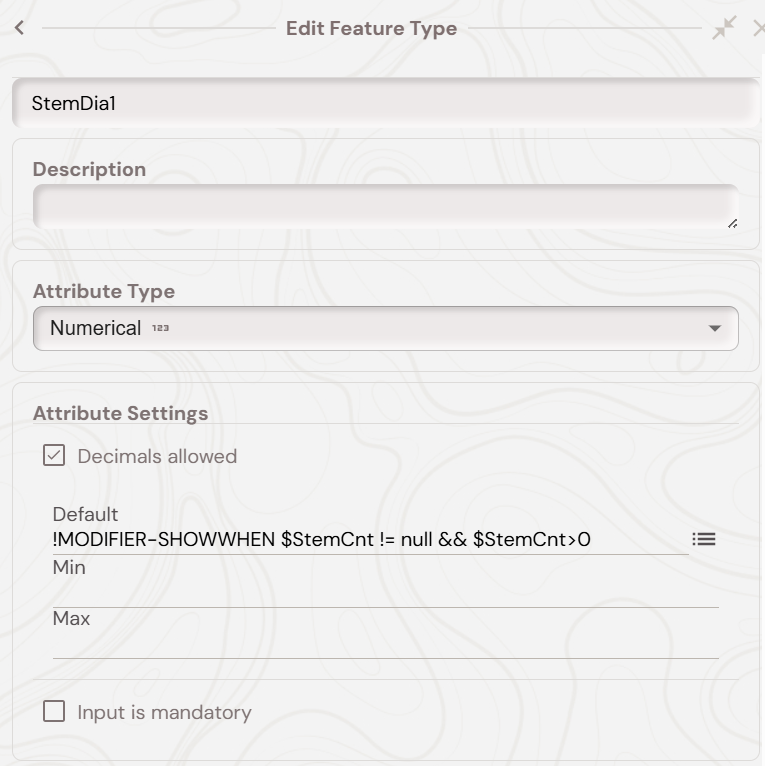
StemDia1 with modifier code:
!MODIFIER-SHOWWHEN $StemCnt != null && $StemCnt>0
StemDia2 with modifier code:
!MODIFIER-SHOWWHEN $StemCnt != null && $StemCnt>1
StemDia3 with modifier code:
!MODIFIER-SHOWWHEN $StemCnt != null && $StemCnt>2
StemDia4 with modifier code:
!MODIFIER-SHOWWHEN $StemCnt != null && $StemCnt>3
StemDia5 with modifier code:
!MODIFIER-SHOWWHEN $StemCnt != null && $StemCnt>4
StemDia6 with modifier code:
!MODIFIER-SHOWWHEN $StemCnt != null && $StemCnt>5
These attributes will only show when the stem count is greater than the corresponding number. The screenshot below shows the ‘SteamDia1’ attribute.
- Root Protection Radius (RPR)
A numerical attribute (with decimals allowed) named RootRadius with a default value of !CALCRPR:
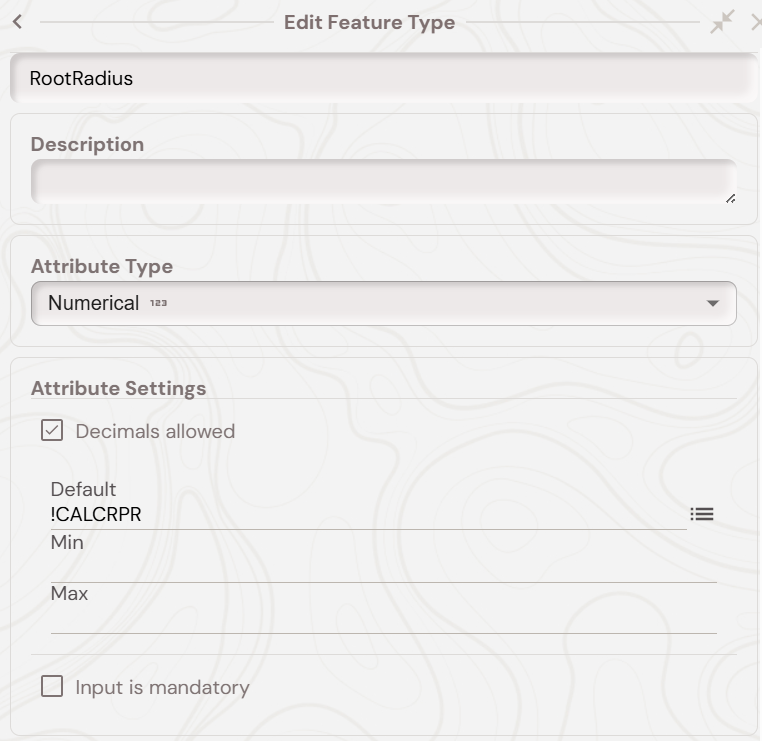
The !CALCRPR calculation automatically computes the Root Protection Radius, in metres, based on the number of stems and their diameters:
For single stem trees: Uses StemDia1 * 12
For 2-5 stems: Calculates based on the square root of the sum of squared diameters * 12
For 6+ stems: Uses StemDia1 and StemCnt to calculate an average
The result is capped at a maximum of 15 metres
- Crown Spread Type
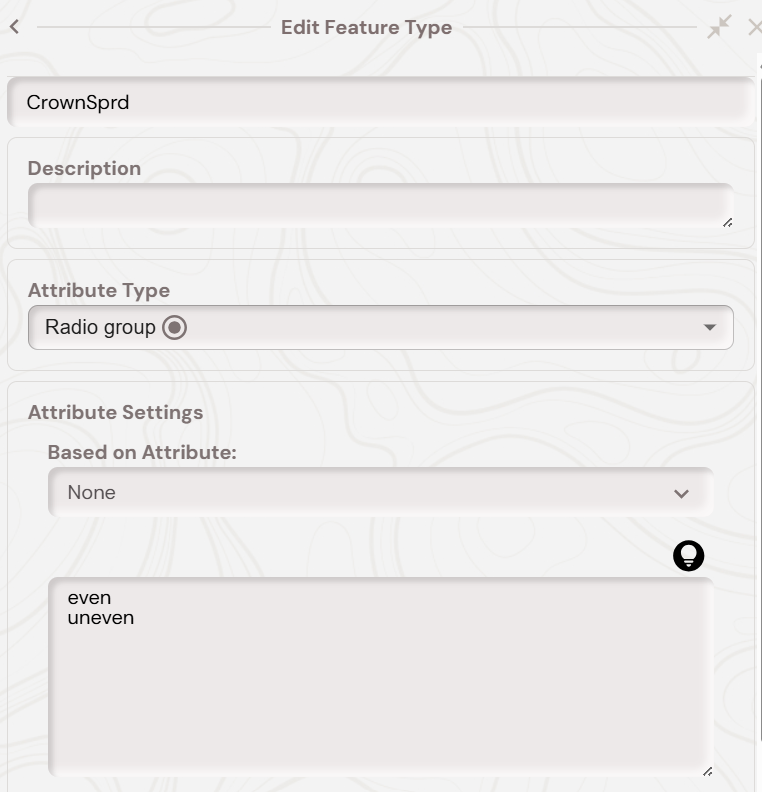
A radio group attribute named CrownSprd with two options:
even
uneven
- Uneven Spread Measurements
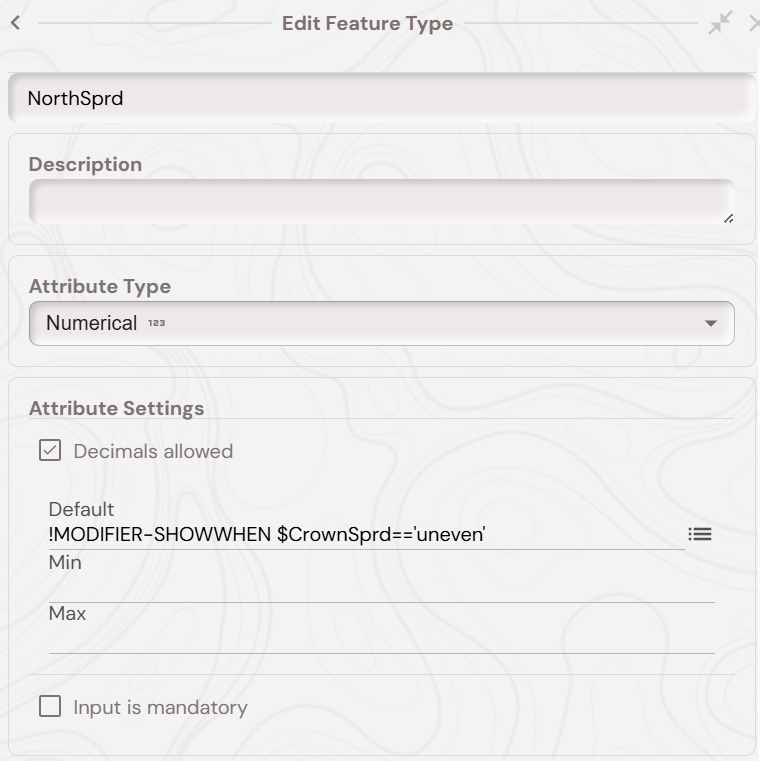
Numerical attributes (with decimals allowed) for directional crown spread measurements in metres, each with the modifier code !MODIFIER-SHOWWHEN $CrownSprd==’uneven’. The attribute names for these are:
NorthSprd
EastSprd
SouthSprd
WestSprd
These attributes will only show when “uneven” is selected for CrownSprd. The screenshot below shows the ‘NorthSprd’ attribute:
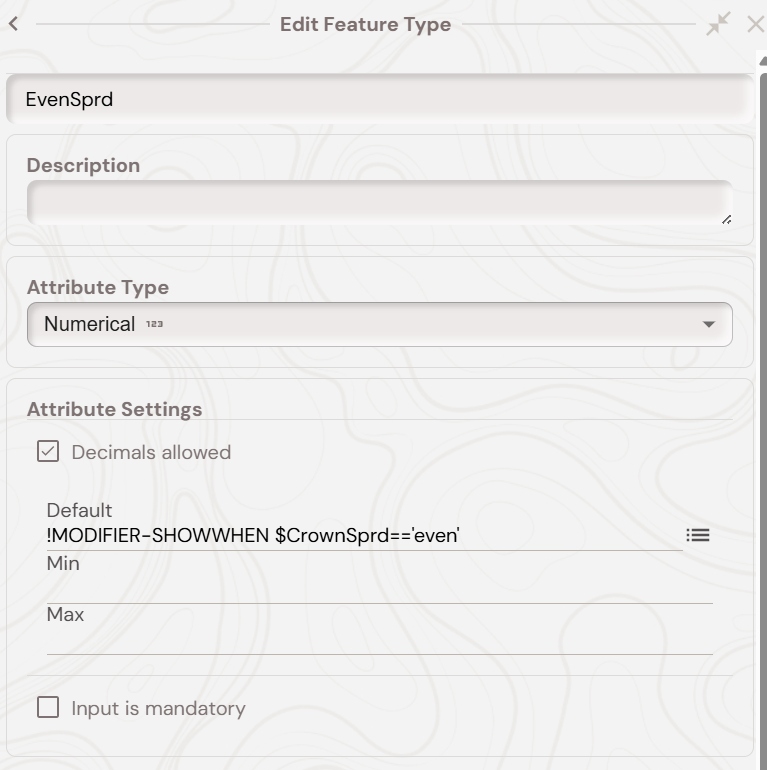
- Even Spread Measurement
A numerical attribute (with decimals allowed) named EvenSprd with the modifier code !MODIFIER-SHOWWHEN $CrownSprd==’even’
This attribute will only show when “even” is selected for CrownSprd.
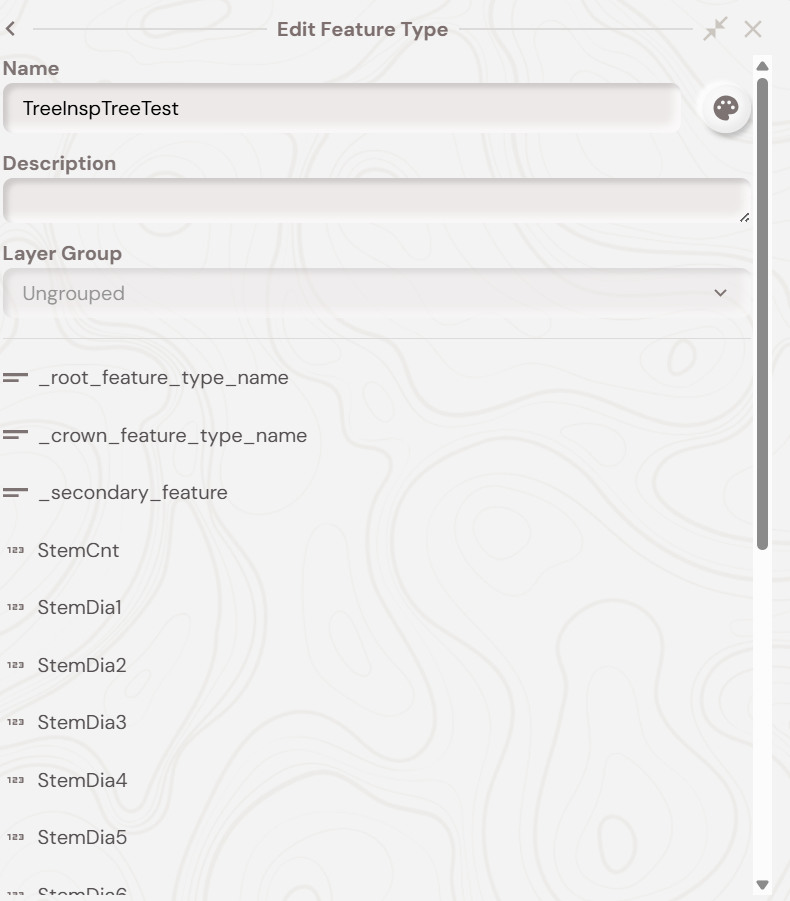
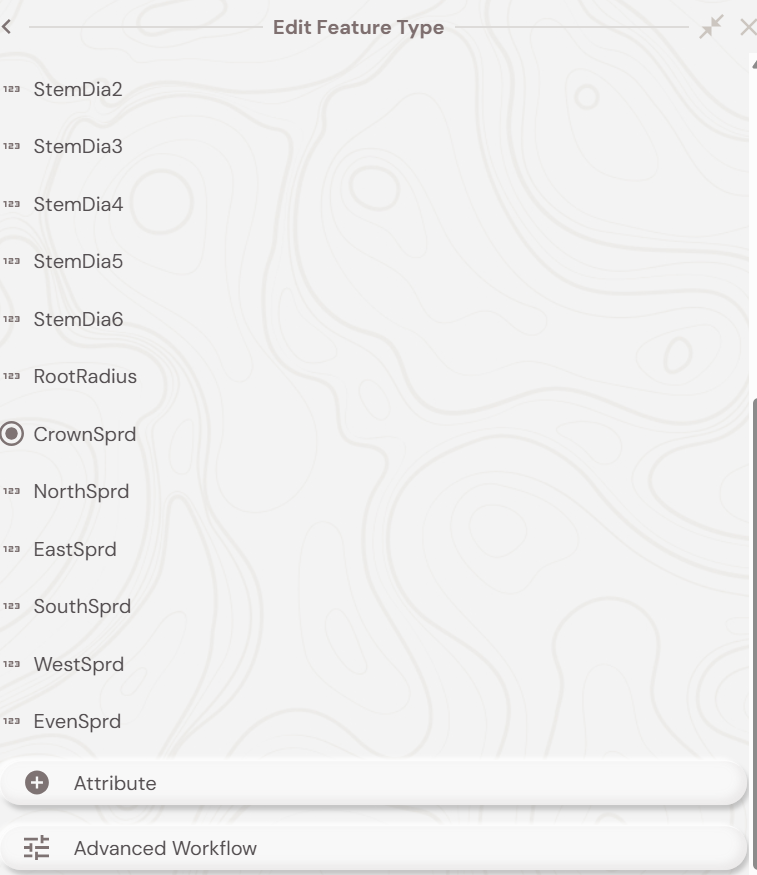
At the end, your parent tree inspection feature type should look like below:
Tree Inspection – Child Root Feature Type Setup
You must setup a linear feature type with the name specified in your parent feature type’s _root_feature_type_name attribute (e.g., TreeInspTestRoot).
The root feature represents the root protection radius of the tree and is automatically generated as a circular line around the tree point based on the calculated RootRadius value.
- Create a linear (LineString) feature type with your chosen name
- Optionally add any attributes that you want to copy from the parent feature (e.g. species information)
- Style the feature type as desired to represent the root protection zone
If the parent feature has matching attribute names, their values will be automatically copied to the root feature when it’s generated.
Tree Inspection – Child Crown Feature Type Setup
You must setup an area (polygon) feature type with the name specified in your parent feature type’s _crown_feature_type_name attribute (e.g., TreeInspTestCrown).
The crown feature represents the tree’s canopy spread and is automatically generated as either:
- A circular polygon (for even spread)
- An elliptical polygon (for uneven spread with directional measurements)
- Create a polygon (Area) feature type with your chosen name
- Optionally add any attributes that you want to copy from the parent feature (e.g species information, etc)
- Style the feature type as desired to represent the tree canopy
If the parent feature has matching attribute names, their values will be automatically copied to the crown feature when it’s generated.
Tree Inspection – Parent Hedge Feature Type Setup
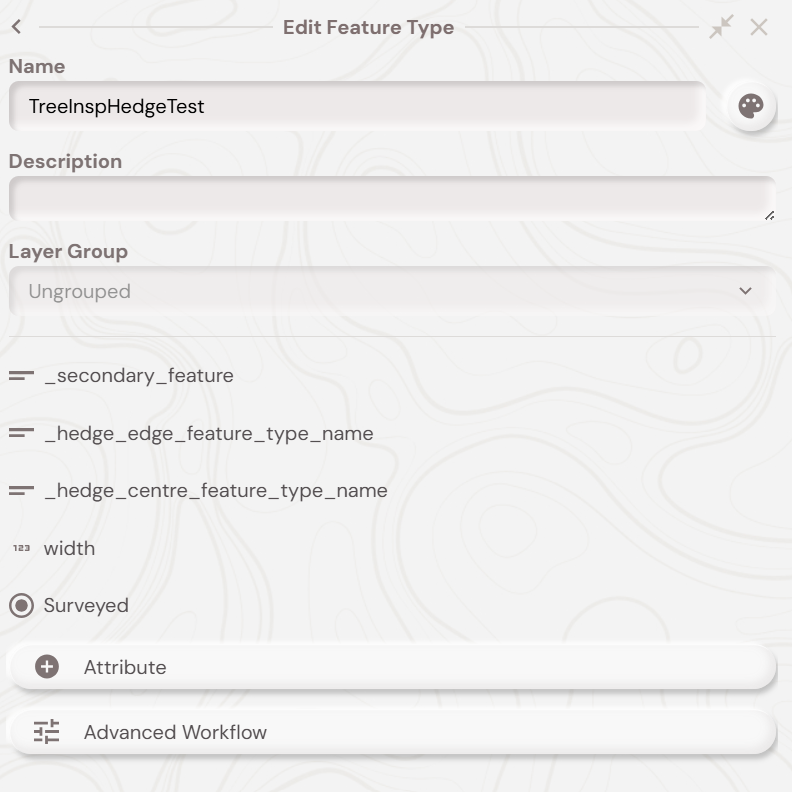
You must setup a parent feature type for hedge inspection based secondary features. The parent should have a linear geometry type for hedge lines. This parent linear feature type must have the following setup:
Required Attributes
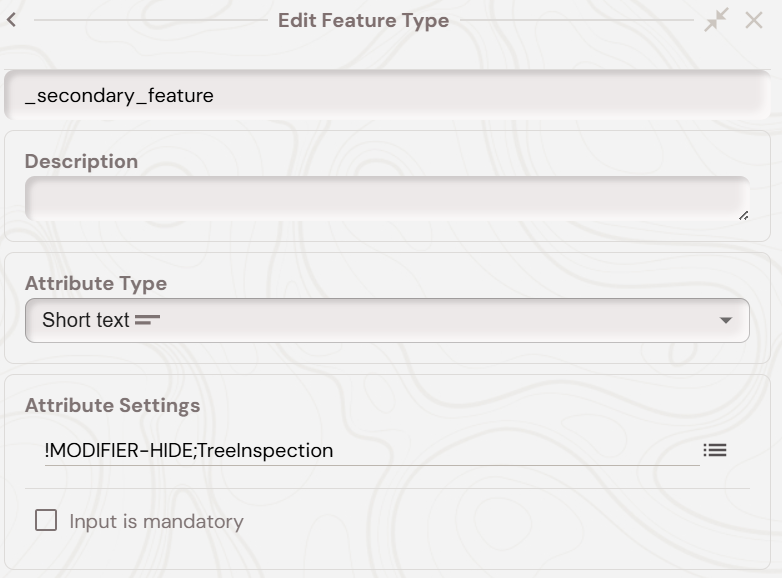
- Secondary Feature Identifier
A short text attribute of name _secondary_feature with a default value of ‘!MODIFIER-HIDE;TreeInspection’:
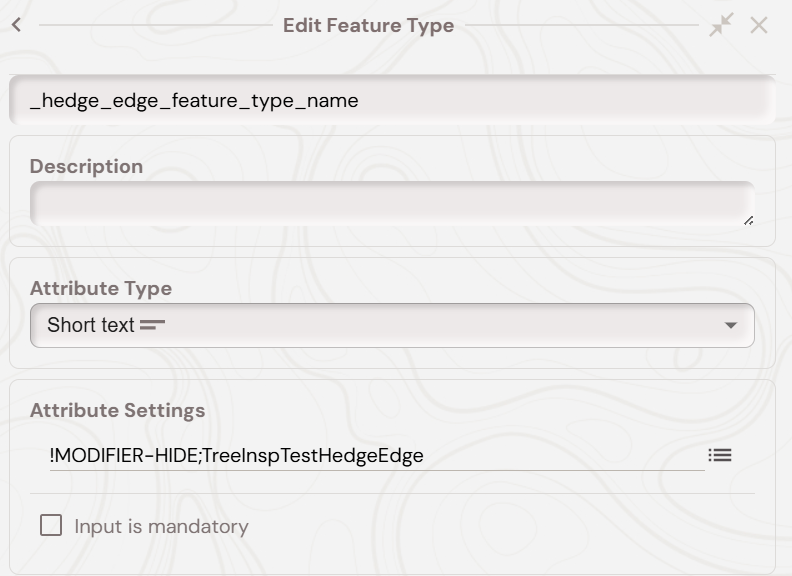
- Hedge Edge Feature Type Name
A short text attribute of name _hedge_edge_feature_type_name with a modifier default code of !MODIFIER-HIDE;TreeInspTestHedgeEdge (replace with your actual hedge edge feature type name):
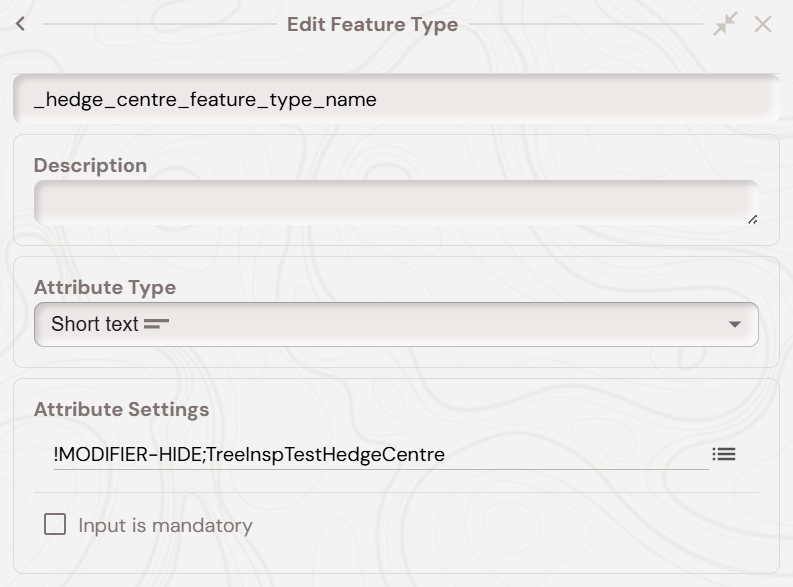
- Hedge Centre Feature Type Name
A short text attribute of name _hedge_centre_feature_type_name with a modifier default code of !MODIFIER-HIDE;TreeInspTestHedgeCentre (replace with your actual hedge centre feature type name):
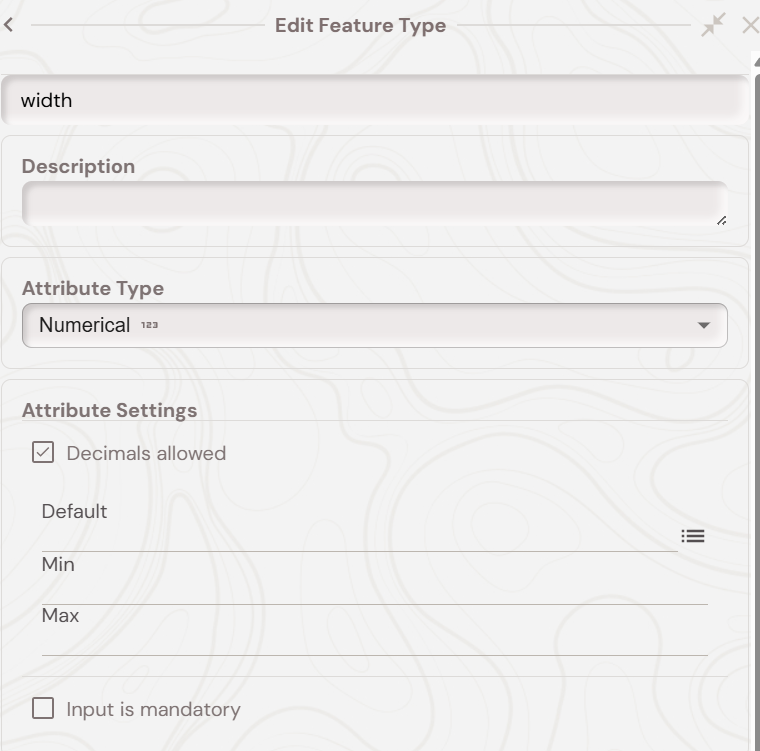
- Hedge Width
A numerical attribute (with decimals allowed) named width to record the hedge width in metres:
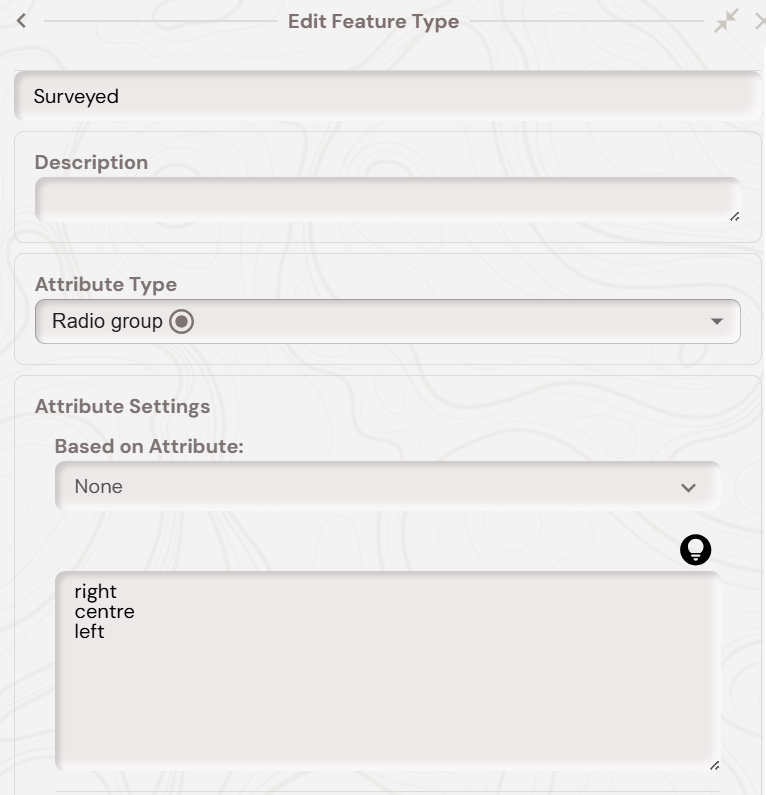
- Surveyed Side
A radio group attribute named Surveyed with three options:|
left
right
centre
This determines which side of the drawn line represents the surveyed edge of the hedge.
At the end, your parent hedge inspection feature type should look like below:
Tree Inspection – Child Hedge Centre Feature Type Setup
You must setup a linear feature type with the name specified in your parent hedge feature type’s _hedge_centre_feature_type_name attribute (e.g., TreeInspTestHedgeCentre).
The hedge centre feature represents the centrelines of the hedge and is automatically generated based on the surveyed side and width:
For “left” surveyed: offset to the right by half the width
For “right” surveyed: offset to the left by half the width
For “centre” surveyed: uses the drawn line as-is
- Create a linear (LineString) feature type with your chosen name
- Optionally add any attributes that you want to copy from the parent feature (e.g species information)
- Style the feature type as desired to represent the hedge centerline
If the parent feature has matching attribute names, their values will be automatically copied to the hedge centre feature when it’s generated.
Tree Inspection – Child Hedge Edge Feature Type Setup
You must setup an area (polygon) feature type with the name specified in your parent hedge feature type’s _hedge_edge_feature_type_name attribute (e.g., TreeInspTestHedgeEdge).
The hedge edge feature represents the full extent of the hedge and is automatically generated as a polygon buffer based on the surveyed side and width.
- Create a polygon (Area) feature type with your chosen name
- Optionally add any attributes that you want to copy from the parent feature (e.g. species information)
- Style the feature type as desired to represent the hedge extent
If the parent feature has matching attribute names, their values will be automatically copied to the hedge edge feature when it’s generated.
Tree Inspection – Mobile Demo
With all of the above setup done you should now be able to create tree and hedge inspection features on the Soarvo Mobile app:
Tree Inspection Workflow
- Create a new feature using your tree inspection parent feature type
- Record the position of the tree on the map
- Fill in the stem count and stem diameters
- The Root Protection Radius will be automatically calculated
- Select crown spread type (even or uneven) and enter the spread measurements
- Save the feature
- The root (circular line) and crown features will be automatically generated
Hedge Inspection Workflow
- Create a new feature using your hedge inspection parent feature type
- Record the linear geometry of the hedge on the map (from the surveyed side)
- Fill in the hedge width
- Select which side was surveyed (left, right, or centre)
- Save the feature
- The hedge edge and hedge centre features will be automatically generated
When you delete a parent tree or hedge inspection feature, all of its associated secondary features (root, crown, or hedge edge/centre) are automatically deleted as well.